
How to upscale anime to 4K — with clean lines and no smearing
Step-by-step: upscale anime and cartoons to 2K or 4K on your own NVIDIA GPU with APISR, AnimeJaNai and Real-ESRGAN models. Offline, no watermark.
Open the episode in AI Upscale, let it detect Anime, pick 2K (free) or 4K (Premium), choose Balanced, run a Test 10s, then Upscale video. The anime models (APISR, AnimeJaNai) keep line art crisp instead of turning it waxy.
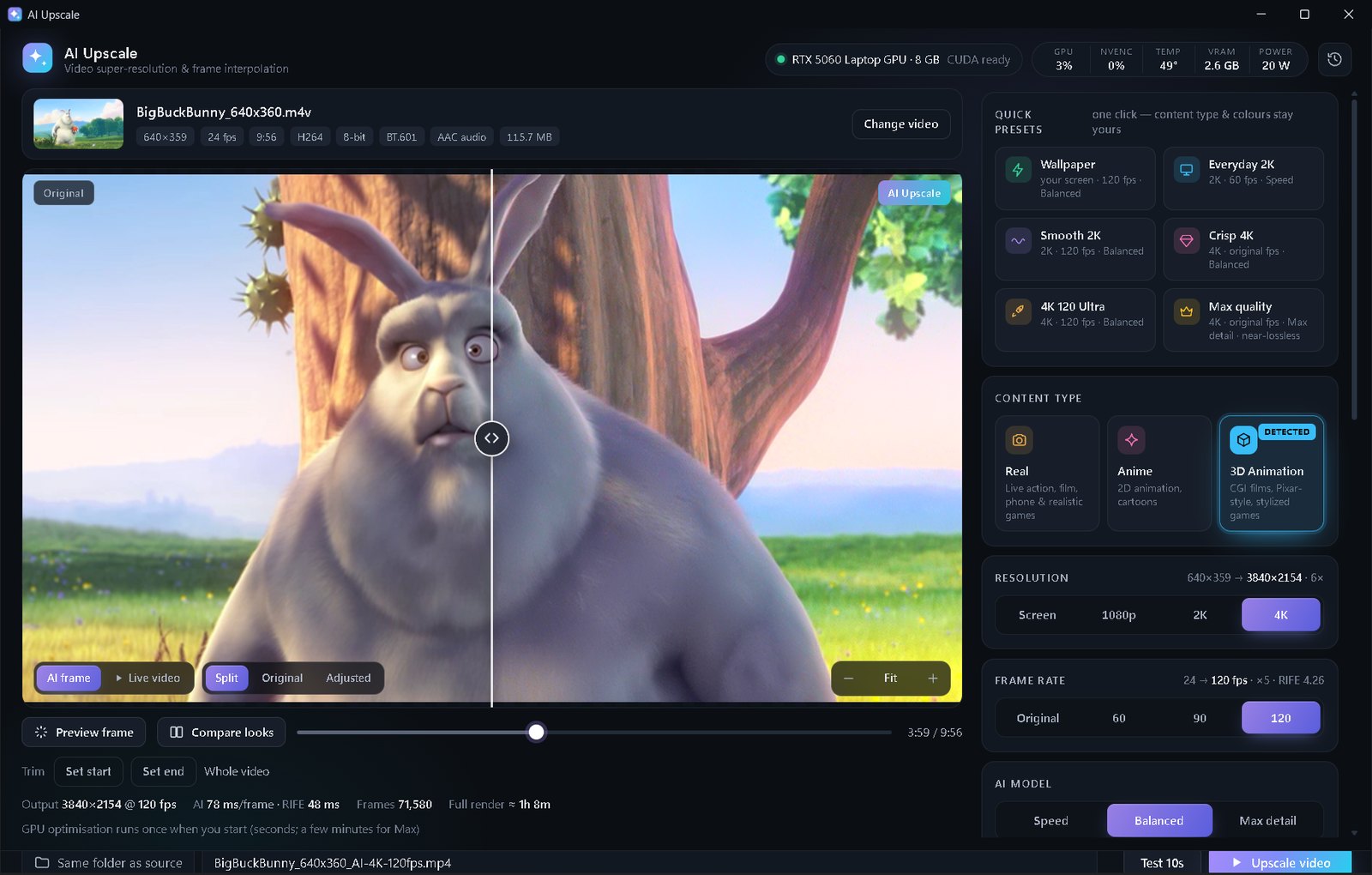
Why normal upscalers ruin anime
Most video upscalers are trained on real camera footage. On anime they sharpen the wrong things: line art gets wobbly halos, flat colour areas get fake texture and gradients turn into bands. Anime needs models trained on drawn images — they treat lines as lines and flat colour as flat colour.
AI Upscale uses three anime model families and picks one for you: APISR (made for low-resolution and compressed anime), AnimeJaNai (fast, clean HD anime) and Real-ESRGAN Anime 6B. A small vision AI checks a few frames and switches the content type to Anime automatically, so you don't have to guess.
Step by step
- Install AI Upscale (Windows 10/11 + NVIDIA RTX GPU) and open it from your desktop.
- Drop your episode or clip into the window. You'll see a Detected badge on Anime. If it guessed wrong, click Anime yourself.
- Pick the resolution. 2K (2560×1440) is a big, safe jump for 720p/1080p anime and is in the free edition. 4K is part of Premium.
- Pick the AI model. Balanced is the sweet spot. Speed is great for clean 1080p sources. Max detail (Premium) uses the APISR DAT transformer for old or very low-res anime.
- Old DVD or 480p rip? Turn on Fix low-quality video and Deband — it removes blocks and banding before upscaling.
- Check before you commit: drag the before/after slider, zoom to 200%, or click Test 10s to render a short clip.
- Click Upscale video. The finished file is saved next to the original, with the original audio and subtitles (MKV) kept.
Tips for the best anime results
- Use the real source, not a re-upload. A 1080p file that was stretched from 540p is “fake HD” — AI Upscale spots this and works from the real detail level (Soft-source fix).
- Don't oversharpen. Keep Sharpen low (0–15); the anime models already produce crisp lines.
- Smooth gradients (skies, night scenes) look best with Deband on.
- Want smoother motion too? 60/120 FPS interpolation (Premium) works well on panning shots; scene cuts are detected so they never smear.
💡 Free edition: up to 2K, clips under 1 minute, Speed & Balanced. Premium ($5 once, yours forever): 4K, any length, Max detail, 60/90/120 FPS and no ads.
FAQ
Can I upscale anime to 4K for free?
The free edition upscales anime to 1080p or 2K. 4K output is part of Premium, a one-time $5 with no subscription.
Which AI model is best for anime?
For clean HD anime, AnimeJaNai and AniScale are fast and sharp. For old, low-resolution or compressed anime, APISR rebuilds lines far better. AI Upscale chooses between them automatically.
Does it work offline?
Yes. After the one-time install everything runs on your own NVIDIA GPU — nothing is uploaded.