
How to convert a video to 60 or 120 FPS with AI frame interpolation
Make choppy 24/30 FPS videos silky smooth at 60, 90 or 120 FPS with RIFE AI frame interpolation on your NVIDIA GPU — with scene-cut detection so cuts never smear.
Open the video in AI Upscale, set Frame rate to 60 or 120, keep the resolution you want, run Test 10s, then Upscale video. RIFE 4.26 creates new in-between frames, and scene cuts are detected so they don't blur.
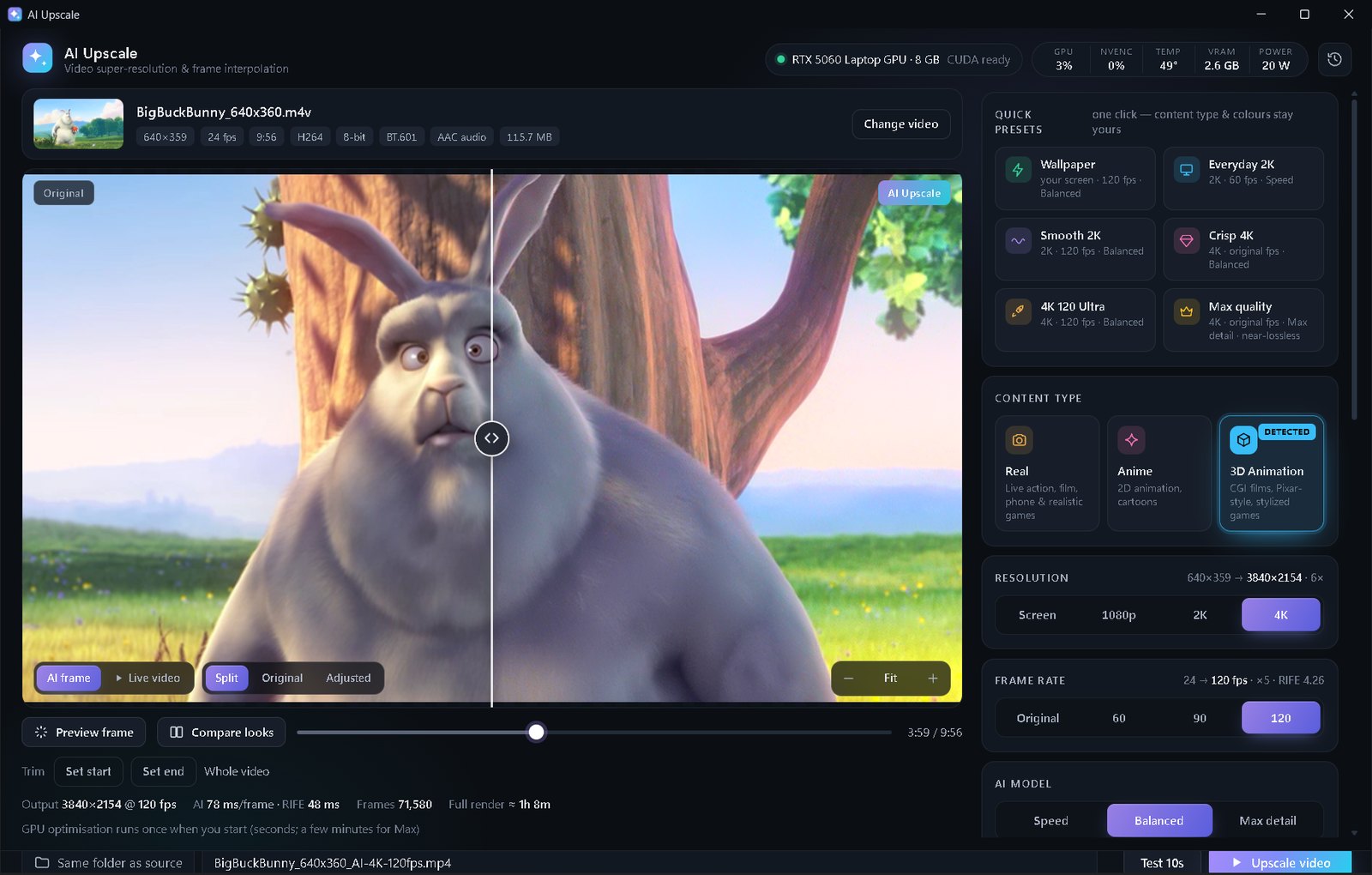
How AI frame interpolation works
A 30 FPS video shows 30 pictures per second. To make it 60 or 120 FPS you need new pictures between the existing ones. Simple tools just blend two frames, which looks ghosty. AI interpolation (AI Upscale uses RIFE 4.26) estimates how every part of the image moves and draws a genuinely new frame in the middle.
It shines on game footage, panning shots, sports, anime pans and live wallpapers — anything where motion looked a bit choppy.
Step by step
- Open the video in AI Upscale (drag & drop or browse).
- In Frame rate, choose 60, 90 or 120. The hint shows the exact result, e.g. 30 → 60 fps · ×2 or 24 → 120 fps · ×5.
- Choose the Resolution — keep 1080p for speed, or upscale at the same time (2K/4K).
- Pick Speed for the AI model if you mostly want smoothness; Balanced if you also want more detail.
- Click Test 10s and play the test file on your screen — judge motion in a real player, not a screenshot.
- Click Upscale video. Audio stays perfectly in sync.
Which frame rate should I pick?
- 60 FPS — the best all-round choice for 60 Hz monitors, phones and YouTube.
- 120 FPS — for 120/144/165 Hz screens and Wallpaper Engine wallpapers; the smoothest look.
- 90 FPS — a middle ground for 90 Hz phones and VR headsets.
- Films at 24 FPS: interpolation makes them look like a soap opera to some people — try a Test 10s first.
💡 60 / 90 / 120 FPS interpolation is part of Premium ($5 once, no subscription). The free edition keeps the original frame rate.
FAQ
Is RIFE better than the motion smoothing on my TV?
Usually, yes. RIFE runs offline with plenty of time per frame and detects scene cuts, so it produces fewer warped edges than real-time TV smoothing.
Will it add fake frames to scene cuts?
No — AI Upscale detects scene cuts and repeats the frame there instead of blending two different shots.
Does increasing FPS make the file bigger?
Somewhat. More frames means more data, but HEVC/AV1 compress the extra frames well because they are very similar.